Use AutoWhisper on Your Phone: From WeChat to Creating and Downloading
Add AutoWhisper to your phone Home Screen. Tap its icon to open it as a web app, create with CMO, upload materials and download your work.
1. Open your phone browser
Tap 开始使用 (Start using) in the official account to receive the instructions and two image guides directly in WeChat. Follow them to open this address in Safari, or copy it into your browser address bar.
https://autowhisper.xyz/en
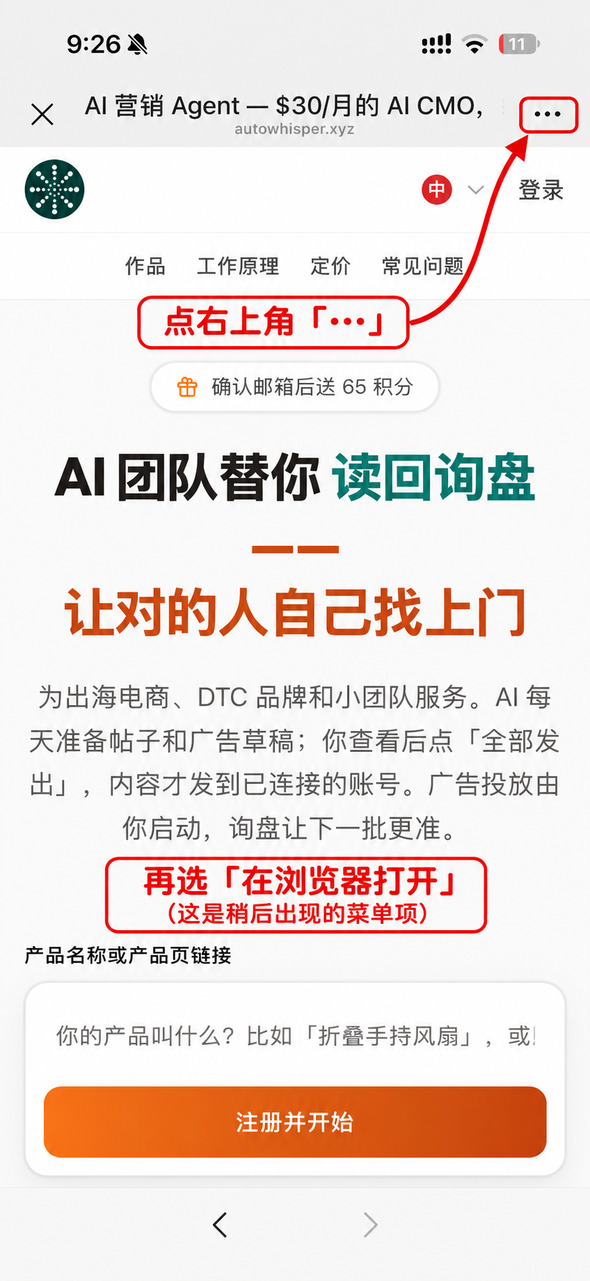
If the page is already open inside WeChat, use its upper-right menu and choose Open in browser. If that option is missing, copy the address, open Safari or Chrome yourself and paste it. The official account cannot switch browsers automatically.
2. Add AutoWhisper to your Home Screen
These four iPhone screenshots show the complete flow. The official account combines them into two long images that you can tap to enlarge.
Open AutoWhisper in Safari
Use WeChat’s upper-right menu to open the website in your browser, or copy the address into Safari.
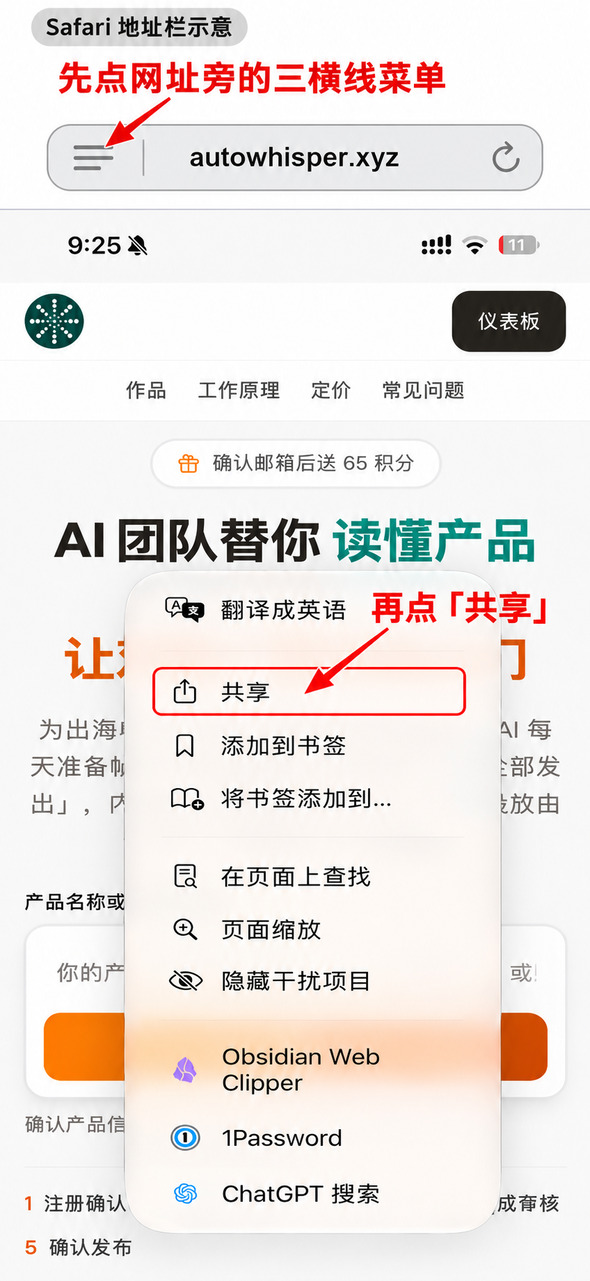
Open Safari’s Page Menu next to the address bar, then choose Share
Tap the Page Menu button beside the website address, shown as three horizontal lines. The diagram above the screenshot points to it. Open that menu, then tap Share inside the red outline.
The screenshot shows the Chinese 共享 label.
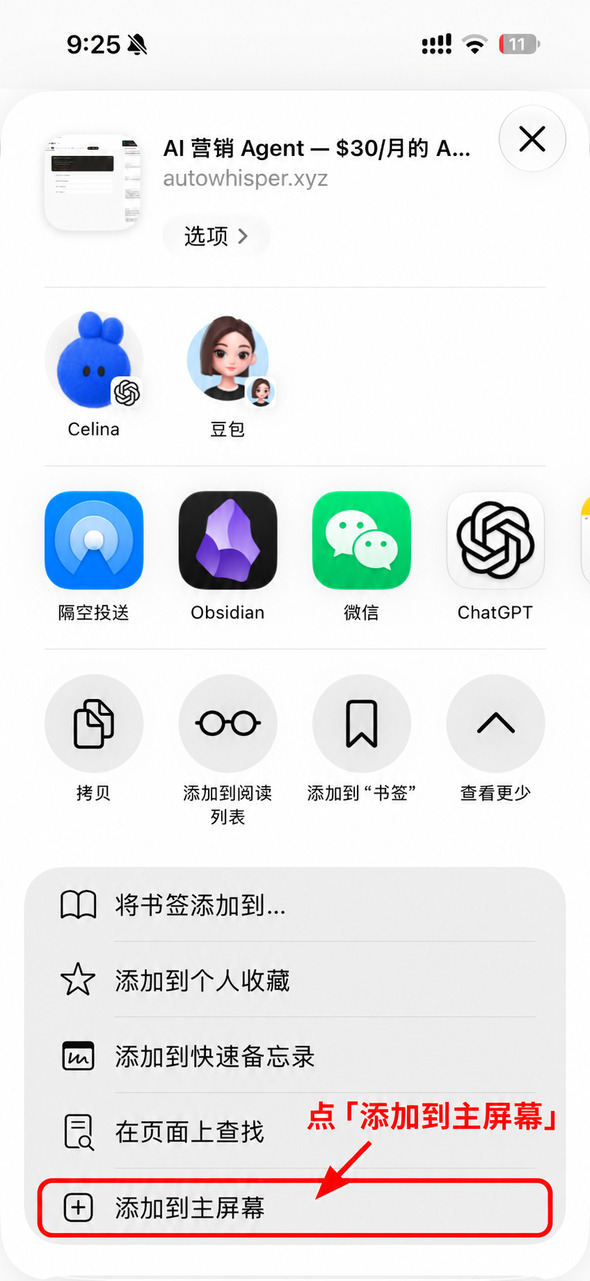
Choose Add to Home Screen
Look for 添加到主屏幕 in the share sheet.
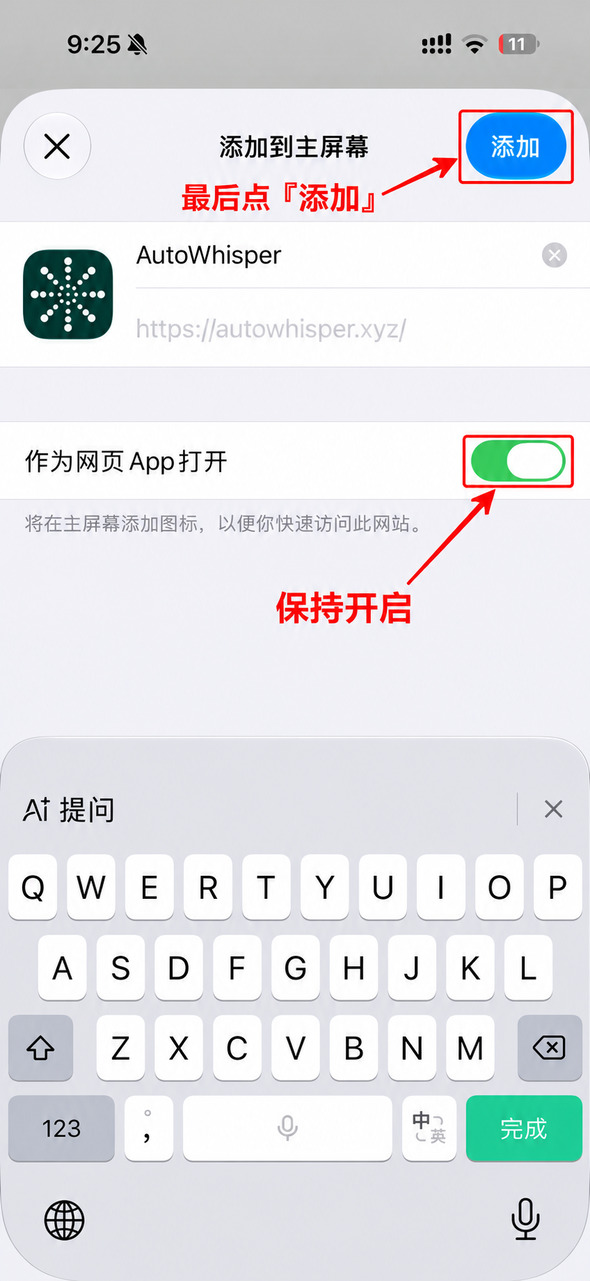
Keep Open as Web App enabled and tap Add
You can keep the name AutoWhisper. Find its icon on your Home Screen, open it and sign in to start using it. The screenshot shows 作为网页 App 打开 and 添加.
On Android, open the website in Chrome and use the upper-right menu’s installation or shortcut action. Follow the prompts to install it or add it to your Home Screen.
3. Sign in to the same account
If you already have an AutoWhisper account, use your original email or Google sign-in to keep your existing work together.
New users can register using the options on the page. For WeChat sign-in:
- Open the sign-in page in your phone browser and choose WeChat sign-in to get a six-digit code.
- Switch to WeChat and send the code to the 奥微AI营销官 official account.
- After confirmation, return to the original browser tab to continue signing in. Do not switch to a new private browsing window.
- If the code expires, request another one in the original tab and send the new code.
Want to use WeChat for an existing email or Google account? Sign in using the original method first, then complete Settings → WeChat binding. Future WeChat sign-ins will open that same account. Avoid registering separately with an unlinked WeChat identity.
4. Create with CMO
Choose your workspace on the website and open the CMO conversation:
- Send your product URL and describe what you need.
- Use the upload control to select real product images or videos from your phone, then explain the request.
- If your materials are not ready, describe the product and audience to plan first. Add real materials before production.
For example:
I want an introduction for this product, aimed at overseas customers. Help me review the selling points and plan first, then wait for my confirmation before making it.
Review the product details, image and plan, then confirm when the page asks. Generation uses AutoWhisper credits; check or buy credits in the website wallet.
Send creation requests and materials in the website CMO conversation. The official account provides entry links, examples and help.
5. View, revise and download
Open the content or task entry in the conversation to see its status. If it is still processing, return to the same workspace later. A script or first frame is not a finished video.
Once the content is complete, open its details, preview the image or play the video, then use the available download control. Look in the browser download list or your phone’s Files app. Saving to Photos may require a separate action on your phone.
For changes, return to the same CMO conversation and identify the content and changes you want. Follow any confirmation about credits when regeneration is needed.
If uploads or downloads fail inside WeChat, copy the website into an external browser, sign in to the same account and reopen the content in the same workspace.
Advanced: use Cherry Studio
If you want AutoWhisper inside your own AI client, follow the Cherry Studio setup guide. That route needs a model API from Qumge or another provider plus AutoWhisper MCP authorization. Qumge model charges and AutoWhisper generation credits are billed separately.
For everyday phone use, the browser is enough. For help, use 教程与帮助 → 联系我们 (Tutorials and help → Contact us) in the official account.