Connect AutoWhisper to ChatGPT: A Screenshot Guide for Manufacturers

Keep using ChatGPT. This setup lets it use your AutoWhisper account to read product information, create marketing content, check drafts, and schedule publishing after your approval. You can chat in your preferred language and ask for English content aimed at overseas buyers.
The main walkthrough uses the ChatGPT desktop app’s Settings → Plugins → Add MCP server screen. The screenshots were taken on October 12, 2026 and show Chinese interface labels, explained below in English. You do not need Codex or terminal commands. Button names may vary by version. For ChatGPT in a browser, use the separate web setup instructions.
Give your familiar ChatGPT assistant an AI marketing team
You already use ChatGPT to write, translate and discuss ideas. Connecting AutoWhisper gives that assistant the tools and workflows of an AI marketing team: product information, content planning and creation, draft review, and publishing arrangements.
“Marketing team” describes the AI’s roles and tools. You remain responsible for accurate product information, choosing a direction and approving publication.
For example, you could ask:
Our company makes sleep pods. Can you help us make some introduction videos?
You do not need to know what to prepare first. The assistant can start from this request, ask who the video is for and what it should show, then guide you through supplying real product information. Step 6 below develops this example.
Here is the division of work:
| Who | What they do |
|---|---|
| You | Set the goal, confirm product information and review the result |
| ChatGPT | Understand your request, organize the task and explain the results |
| AutoWhisper | Supply product information and marketing tools, and carry out supported content, draft-review and publishing operations |
Keep giving instructions in ChatGPT; manage your products and content in AutoWhisper.
Why connect it?
A workflow built for marketing. AutoWhisper brings together product information, target buyers, content planning, image and video creation, drafts and publishing records. You can keep promoting the same product with less repeated briefing, copying information between tools and organizing the results.
You do not need to set up and manage multiple AI model services. AutoWhisper supplies the model services for its content generation, with costs calculated under its credit rules. For that generation, you do not need to buy separate model API usage, configure your own model key, or top up individual text, image and video providers.
Check costs in two places: AutoWhisper generation uses its platform credits; ChatGPT conversations follow your existing plan and allowance. Giving instructions and reading returned information in ChatGPT still counts toward its own usage. ChatGPT usage details
You can try your first video before paying. Registration and account verification provide 65 starter credits. Once connected, describe your business and what you want to make; you can begin without any products already added. Start with one video, confirm the product details and direction, then decide whether to continue or top up.
AutoWhisper’s AI marketing assistant conversations also use credits. Reading account information, product lists and balances does not spend platform credits. What your trial covers depends on the selected video plan and your actual balance.
Register to try AutoWhisper · Already registered? Sign in
Plugins, apps, MCP and skills: think of equipping a new assistant
When you give a new assistant a marketing task, you provide business tools and explain how to do the work. The names in ChatGPT’s settings describe those jobs:
| Name in settings | The question it answers | An AutoWhisper example |
|---|---|---|
| App | Which tool should the assistant use? | Use the product information and marketing functions in AutoWhisper |
| MCP | How do you connect that tool? | Enter AutoWhisper’s URL so ChatGPT can communicate with it |
| Skill | Which steps should the assistant follow? | Save a work instruction: read the product → make a draft → ask you to review |
| Plugin | How do you install tools and steps together? | An installable set that can include connections, skills, or both |
App: a business tool for the assistant
AutoWhisper is a marketing tool. Other apps can provide functions for files, email and more. In these ChatGPT settings, an app is an entry point to a connected outside tool. Once you connect and authorize AutoWhisper, ChatGPT can use the information and functions your account permits.
When you see “App,” think: which tool have I given my assistant? Here, it is AutoWhisper.
MCP: a way to connect that tool
Think of MCP as a way for two systems to work together. It carries ChatGPT’s requests, such as reading a product or making content, to AutoWhisper and brings the results back. Like connecting equipment in the right way, you enter the supplied URL without needing to understand the mechanism.
App describes which tool you use; MCP describes how it connects. Some screens may call the same AutoWhisper integration an app, while others call it an MCP server. Those labels do not necessarily mean two separate purchases or installations.
Skill: a work instruction for the assistant
A skill saves steps, formats and requirements so the AI can reuse them. A marketing work instruction could say: read the product information, suggest promotional angles, make an English draft, then ask you to review it.
When you see “Skill,” think: how should my assistant do the work? It guides the method. Reading your real AutoWhisper product information also requires an authorized tool connection. How skills work
Plugin: an installable set of tools and work instructions
A plugin is like an installable kit. If a marketing plugin bundles an AutoWhisper connection and a work instruction, installing it gives you the connection setup and guidance it includes. You still sign in and approve tools that need access to your account. A plugin can also contain only skills or only tool connections.
When you see “Plugin,” think: a kit that helps install things together. Check its description to see what it includes. Plugins and apps explained
For this desktop walkthrough: add AutoWhisper’s MCP URL → sign in and approve → describe your marketing need. You do not need to install an extra plugin or skill for these steps. You can add reusable marketing workflows later.
Where do ChatGPT and Codex fit?
ChatGPT is the general AI assistant you talk to. Codex mainly helps developers write code, change software and run tests. Factory owners and managers can keep using ChatGPT for this guide; connecting AutoWhisper does not require installing Codex.
Both may appear in the same desktop app. The tools a particular conversation can use still depend on whether it can access the connection you set up. The steps below show how to check that, without first learning the technical settings.
What to prepare
- The ChatGPT desktop app, signed in, with Add MCP server available in settings.
- An AutoWhisper account: sign in or register.
- Know your business and what you want to make. You do not need to create a product first, find its ID, or prepare a website or product link before starting.
An empty account with one default workspace is normal. Think of a workspace as a folder for your company’s products and marketing content. The assistant can help choose the right one when needed; you do not have to look up its number. Making a video of your real product requires suitable materials, which the assistant should explain as you go. You do not need a connected social account to make and view a video.
Step 1: Open the plugin settings
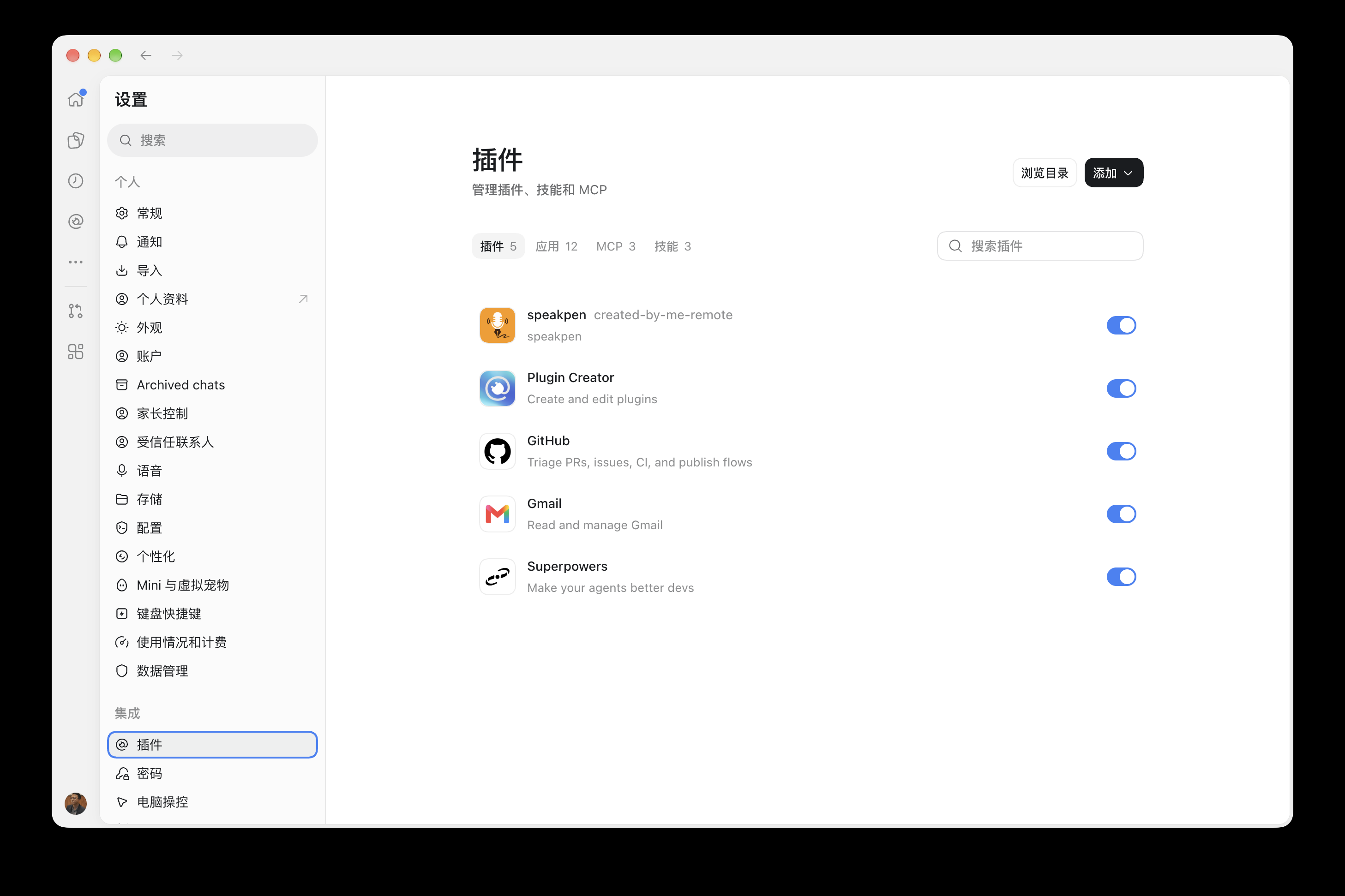
In the ChatGPT desktop app, open Settings → Plugins. The page has tabs for Plugins, Apps, MCP and Skills. This walkthrough adds an MCP server.
Step 2: Select Add MCP server
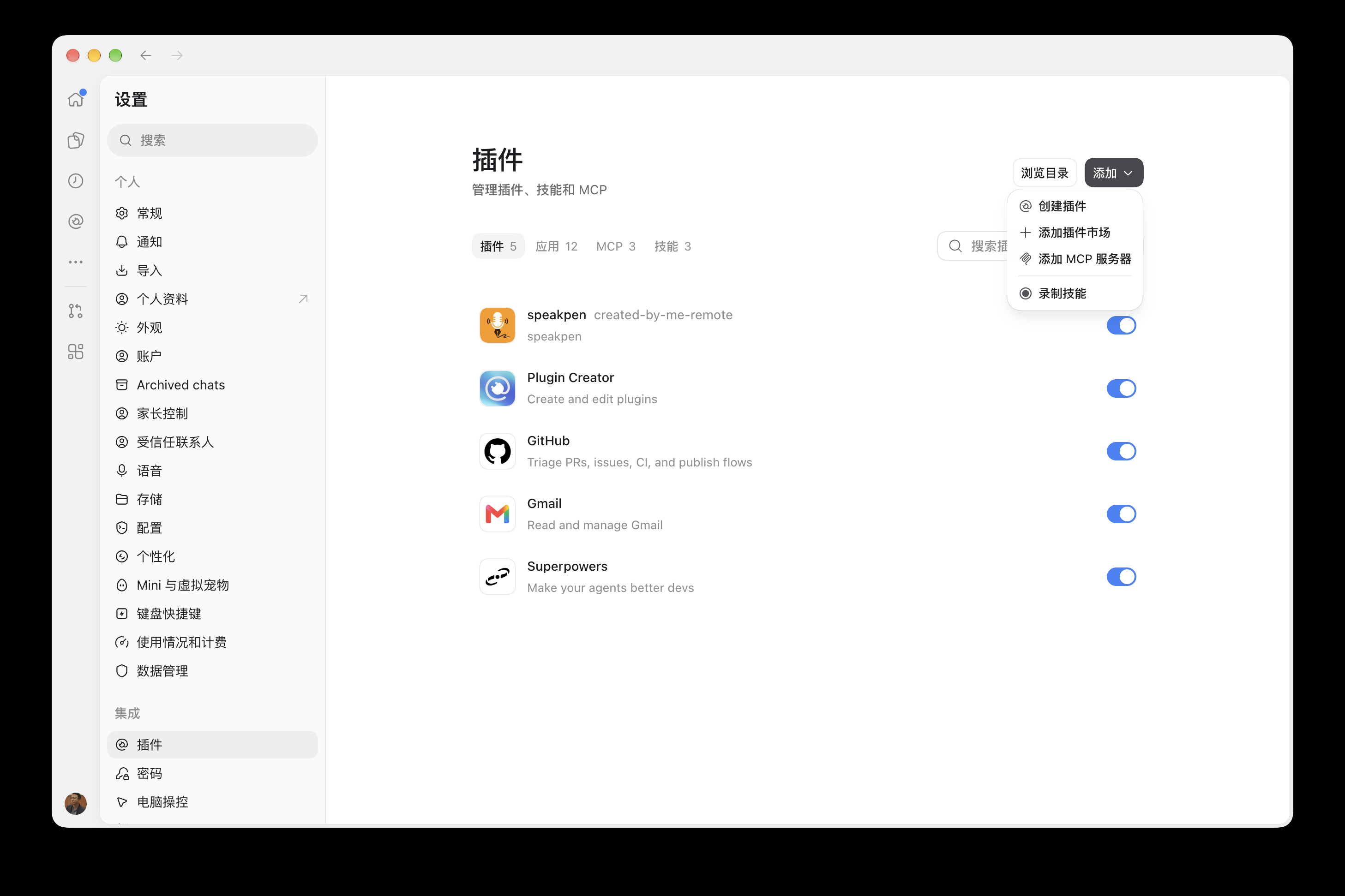
Select Add → Add MCP server at the top right.
Step 3: Switch to Streamable HTTP and fill three fields
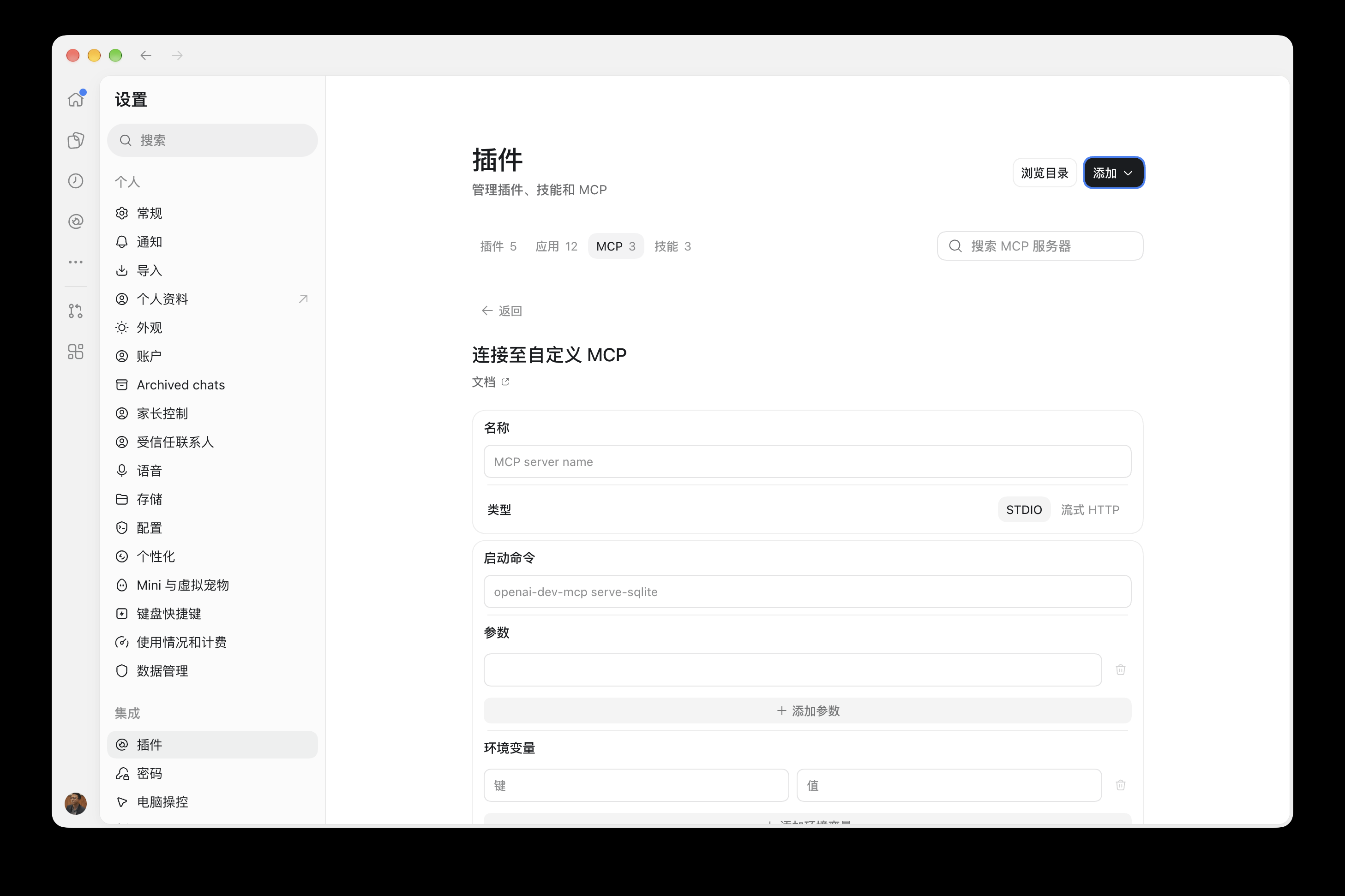
The form may initially select STDIO, showing Command, Arguments and Environment variables. That is the initial state in the screenshot. Select Streamable HTTP first, then enter the server URL.
| Field | Value |
|---|---|
| Name / 名称 | autowhisper |
| Type / 类型 | Streamable HTTP / 流式 HTTP |
| URL / Server URL | https://autowhisper.xyz/mcp |
| Optional headers or token environment variables, if shown | Leave blank; use account authorization next |
Copy this URL:
https://autowhisper.xyz/mcp
The URL must end in /mcp. https://autowhisper.xyz/skill contains installation instructions for assistants that can run commands; it is not the server URL for this form.
Save the configuration. If the app requests a restart, restart before continuing. The remote AutoWhisper connection uses Streamable HTTP and does not need a STDIO command.
Step 4: Select Authenticate
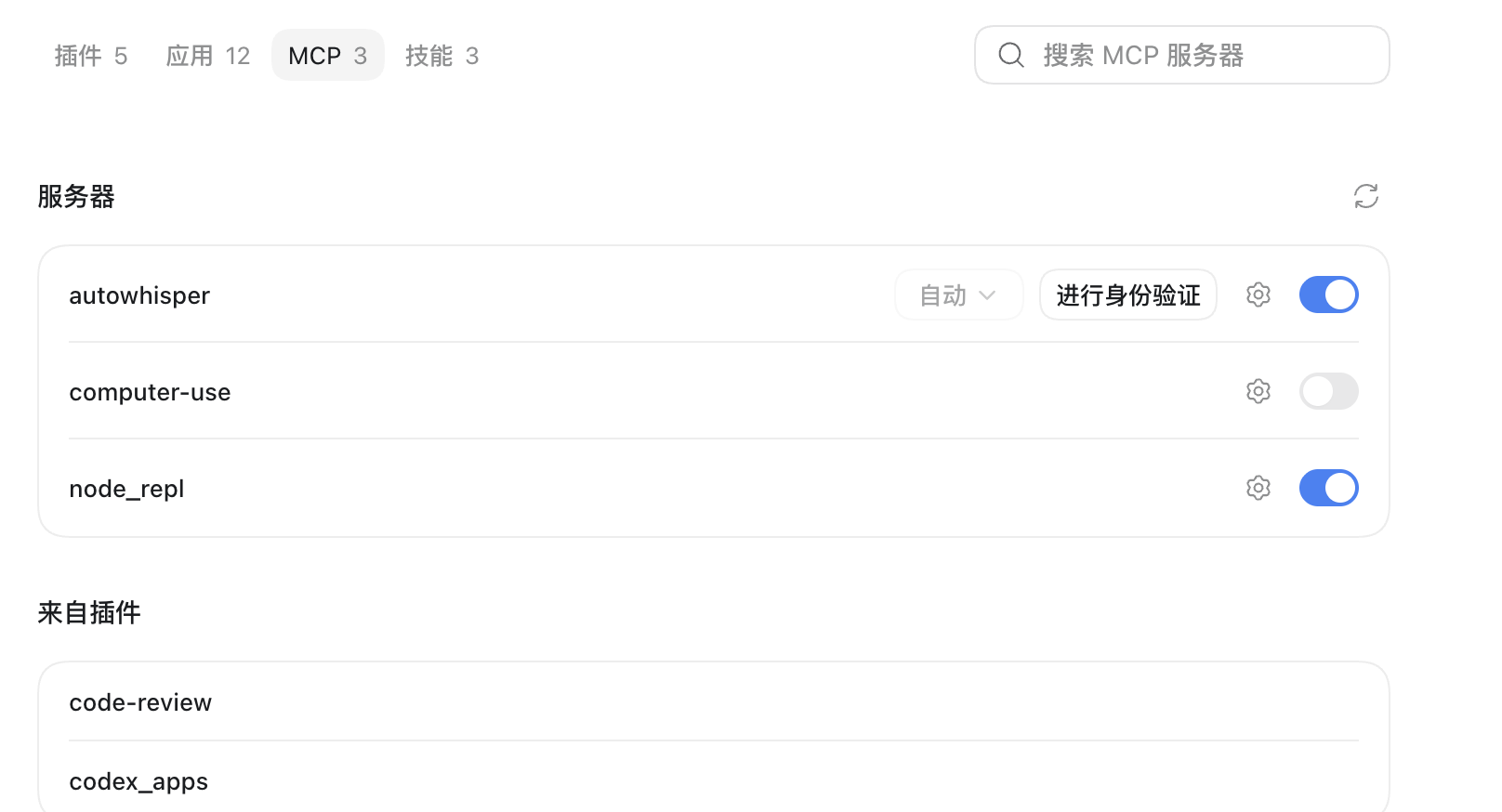
Return to the MCP tab. Find autowhisper, keep its switch enabled and select Authenticate. An enabled entry means the configuration was added; you still need to authorize your account before querying its data.
Step 5: Sign in to AutoWhisper and approve the connection
Your browser opens the AutoWhisper authorization page. If you are signed out, sign in to the account you want to demonstrate, then return to approval.
Review the requesting app and listed permissions, then select Approve. This approves the account connection. Generating content, approving a draft or publishing are separate actions after connection and may use credits.
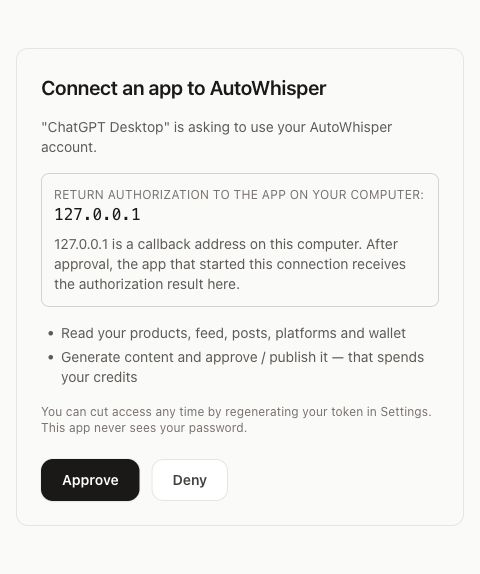
Why does it show 127.0.0.1? That is a callback address on your own computer. The desktop app temporarily receives the authorization result there, then connects to AutoWhisper. Your server URL remains https://autowhisper.xyz/mcp. You do not need to change it to 127.0.0.1 or enter a callback URL yourself.
The browser may then display Authentication complete. You may close this window. Return to ChatGPT. Callback addresses vary by client; web clients normally display a web domain.
Step 6: Describe your business and what you want, just as you normally chat
On this computer, open a ChatGPT Work conversation that can use local tools. Start a new conversation after adding the server. If the app offers a local/cloud choice, use the local environment that has this computer’s MCP connection.
Once connected and enabled in this conversation, use your own words. For example:
Our company makes sleep pods. Can you help us make some introduction videos?
You do not have to mention AutoWhisper in every message or understand terms such as “main image” or “product ID.” In a conversation with the connection enabled, the assistant can use AutoWhisper’s marketing tools. When information is missing, it should help you supply it before making a video that accurately shows your product.
If it only writes generic copy without using the connected tool, or says there is no AutoWhisper connection, see optional connection troubleshooting below.
Your first trial: from “we make sleep pods” to one video
This is an example of how the assistant can guide you. Its questions will depend on your answers and available information. You do not need to complete a technical form or prepare everything at once.
First: who will watch the video?
You: Our company makes sleep pods. Can you help us make some introduction videos?
The assistant could ask: Yes. Is the video for hotels and business buyers, or for individual consumers? Would you like it in English or another language?
You: Overseas hotel buyers. In English, showing what it looks like and how it is used.
Start “some videos” with one product introduction video, then review it before making more. The assistant should help settle on a specific direction rather than generate a batch while the goal is still unclear.
Next: help you provide real product materials
The assistant could continue: To show your sleep pod accurately, I need to see the actual product. Do you have any photos? Phone photos are fine. A product page link can also help if you have one; you do not need a website.
You: I have phone photos, but no website.
The assistant guides you: Start with a clear photo of the whole product. We can then decide which parts or uses to show. If we need interior, door-opening or other views, we will ask for those photos too. Which two or three real features would you like to highlight?
You do not need to know what a “main image” is beforehand. It is simply the main photo used to identify and show that product. The number of photos depends on what the video should show. Everyday descriptions such as “furniture-sized” or “fits in one hand” can also help describe its size; you do not need a technical specification sheet to begin.
If you have neither photos nor a link, you can still discuss the goal and outline. But “we make sleep pods” alone is not enough to create a video that accurately shows your actual product. The assistant should explain what is missing and wait for it, without substituting an unrelated or invented product or making up certifications, capacity or performance claims.
Review the saved product in chat, then start
With a publicly readable product page, the assistant can ask AutoWhisper to extract the product information. A page requiring sign-in or blocking access may need separate photos and details. A company homepage alone may still need clarification about the specific product.
Upload the photo in ChatGPT and tell the assistant how to use it. The updated AutoWhisper connection includes a media receiving tool: the assistant saves the file in AutoWhisper before using it. Wait for a successful save response; merely attaching a file to the conversation does not confirm it was saved. If your ChatGPT entry point cannot transfer the attachment, upload it on AutoWhisper’s product page as directed, then return to say “the photos are uploaded.” The adding-a-product instructions in Quick Start can help. You do not need to copy product IDs yourself.
Saving product information does not immediately start the first content batch. Every new product, for both new and existing accounts, goes through review first. Automatic content generation on product creation is unchecked by default.
The assistant shows you, in chat:
- Product name: the specific product you want to promote.
- Description: accurate uses and features.
- Main photo: your actual product, shown clearly.
- First content: for example, one English product introduction video draft.
You do not need to fill in IDs or confirm technical parameters. You can make a correction naturally:
Change the description to: This sleep pod is for hotel rest areas. Focus on its appearance and how it is used.
Upload a clearer real photo and say “replace the sleep pod’s main photo with this one.” ChatGPT and AutoWhisper’s built-in chat use the same product-material rules: an explicit replacement changes the main photo; adding reference photos keeps it. The assistant shows the updated details for review; the old card cannot start production using changed information.
When you are happy, click Start making content in chat, or simply reply:
Start
You can also change the first content before starting, such as “only the product introduction video, no other images.” The assistant should show the updated selection for confirmation rather than produce every format by default.
Trial credits follow the actual production plan. A standard single-video script, opening image and video generation currently cost 52 credits; marketing assistant conversations, product research and planning may use additional credits. Longer videos, multiple segments and other options may differ. Several videos are not guaranteed to fit within the trial balance. The product review card focuses on the materials and selected content; check your balance and pricing rules in AutoWhisper.
Review the draft, then finish the video
A written script or an opening image is not a finished video. Check the appearance, features and language first. Once you are happy with the direction, you can say:
Finish this video using the plan we just agreed on. Show it to me first; do not post it to social media.
Production takes time. A finished result should be a playable video or an AutoWhisper content page where you can view it. “Production started” alone does not mean it is complete. If a tool reports that work is still running, check the existing task’s progress rather than submit the same production request again and incur another charge.
Make and review the video before deciding whether to publish. Publishing requires a connected destination and explicit approval. Generating and publishing are separate actions; do not choose an unclear “approve and publish” button just to see the finished video.
Later: replace the main photo or add reference photos and videos
Upload files in a conversation with AutoWhisper enabled, then explain their purpose naturally.
After uploading one photo:
Replace our sleep pod product's main photo with this one.
After uploading several product angles:
Add these photos to the sleep pod's reference images. Keep its current main photo.
With footage of your actual product in use:
Save this footage of our sleep pod in use as a reference video for that product.
Images can be a main photo, additional product photos, or specified person/scene references. Videos can be reference videos, not main photos. If the product or intended use is unclear, the assistant should ask first. Your own product materials and someone else’s advertisement you want to imitate have different uses; say which you mean.
Once saved, the materials stay with the product in AutoWhisper for later work. Saving media does not automatically start video production. Reference materials follow the existing analysis process; reference video analysis uses credits under the same rules as the built-in CMO Chat.
Supported images: JPG, PNG, GIF and WebP, up to 25 MB each. Supported videos: MP4, WebM and MOV, up to 50 MB and 60 seconds each. Up to 5 files per import. Replacing a main photo uses exactly one image.
If you connected MCP before this update, refresh the connection in the MCP list and start a new conversation to load the new media tool. The update preserves your existing account authorization. Whether a particular ChatGPT entry point can deliver an image or video attachment depends on its file capabilities. If it cannot, follow the assistant’s AutoWhisper upload guidance or provide a downloadable file URL.
Connection troubleshooting (optional)
Use this section if something goes wrong. It is not a required first-use prompt.
If the assistant only writes generic copy without using the marketing tool, check that AutoWhisper is enabled in the conversation’s tool or plugin selector. Where a selector is available, select the connected AutoWhisper tool and continue your original request.
To check whether it can access your account, you can ask:
Use AutoWhisper to read my account's workspaces and credit balance. Only read information; do not generate or publish anything.
Your real workspace and balance data verify account access; “I can help” alone does not. An empty product list is normal for a new account, not a connection failure.
If ChatGPT says it has no AutoWhisper connection, check that the server is enabled and authorized, that you started a new conversation, and that the conversation can use this computer’s tools. A cloud conversation with access to a connected computer may also be able to use its tools; verify that this authorized MCP is available there. If it cannot access this connection, use the separate web setup below.
Connecting in ChatGPT web
If you use ChatGPT in a browser, open ChatGPT Plugins, then select Add → Add custom MCP server:
| Field | Value |
|---|---|
| Name | AutoWhisper |
| Server URL | https://autowhisper.xyz/mcp |
| Authentication | OAuth |
| Client registration, if shown | DCR / Dynamic Client Registration |
| Optional OAuth Client ID / Client Secret | Leave blank for dynamic registration |
Create it as a plugin, find and install it, then sign in to AutoWhisper and authorize. In a new conversation, type @, select the installed plugin and describe your business and video request as in Step 6. Availability depends on account and workspace settings. If this entry point is missing, check whether your administrator allows custom MCP servers.
This is the web connection, managed separately from the desktop MCP configuration. Similarly named “Add custom MCP” screens can save connections in different environments.
Common questions
Do I need to send my AutoWhisper password or API token to ChatGPT? Follow the AutoWhisper sign-in and approval flow. Leave optional token fields in the server form blank.
Why not send the install instructions to ChatGPT and let it connect itself? A chat may not be able to run installation commands or change desktop MCP settings. Use the settings walkthrough above. For Claude Code, Cursor and assistants that can run commands, see the agent setup guide.
Do I need to enable computer control? AutoWhisper queries and actions use this MCP connection. Computer control is a separate feature with its own permissions.
Why does another conversation say “Auth required” after I already approved? Computer access and AutoWhisper authorization are different permissions. Connecting a computer lets a conversation use its local resources; approving AutoWhisper lets that MCP client access your account. A conversation may see the server configuration without having its authentication credentials. Use the optional account-check request above in the authorized conversation first, then check the failing conversation’s environment and connection status. “Auth required” alone does not prove the original authorization expired. A connection in a new client or a different environment may need its own authorization.
How do I revoke access? In AutoWhisper, open Settings → Connect your agent → Disconnect connected agents. This disconnects every assistant connected to this account. Products, existing content and connected social accounts stay in place.
Interface and field guidance follows OpenAI’s desktop MCP documentation and custom MCP setup guide. The terms follow the ChatGPT and Codex guide and plugin architecture. The desktop screenshots use the version and date stated above.